
|
Getting your Trinity Audio player ready...
|

Your WordPress backup plugin says “Backup Complete.” But what if I told you that file might be completely worthless when you actually need it?
I learned this the hard way. After running a successful blog with over 300 posts, countless hours of SEO optimization, and years of carefully curated images, I needed to migrate my WordPress site to a new host. Like any responsible blogger, I created a “proper” backup before starting.
What happened next changed how I think about content protection forever—and introduced me to a backup strategy that most bloggers have never heard of, but desperately need.
Why Your WordPress Backup Might Fail When You Need It Most
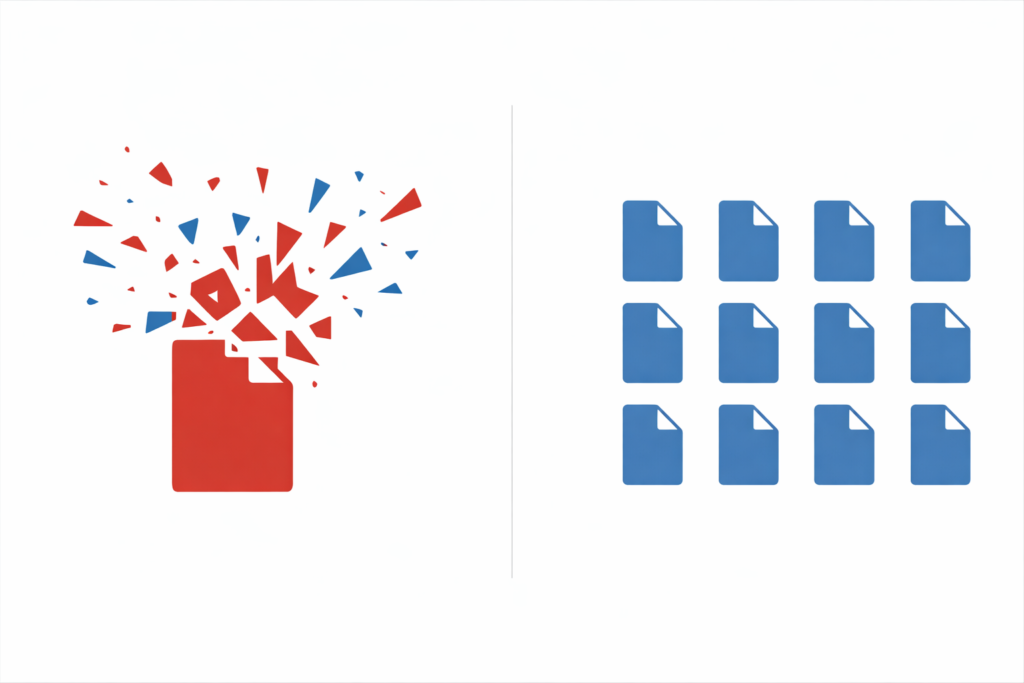
Here’s the uncomfortable truth most backup plugins don’t advertise: Traditional WordPress backups create massive single files containing your entire database, every image, all your themes and plugins, and years of content compressed into one monolithic archive.
When my migration went sideways and I tried to restore that backup, I was greeted with the message every blogger dreads: “This backup file is corrupted and cannot be restored.”
Just like that, years of work vanished.
The problem isn’t that backup plugins are poorly made—it’s that the fundamental approach has a critical flaw. When you compress hundreds of megabytes (or gigabytes) of data into a single file, you’re creating a massive single point of failure.
Consider what’s inside a typical WordPress backup:
- Your MySQL database with all posts, comments, and metadata
- Thousands of image files across multiple sizes
- Theme files and customizations
- Plugin configurations
- User data and settings
- SEO metadata from Yoast, RankMath, or All in One SEO
If even one small section of that file becomes corrupted during:
- The creation process (server timeout, memory limit)
- The download (network interruption)
- Storage (hard drive errors)
- The upload during restoration
…the entire backup becomes unusable.
The backup paradox: The larger your site becomes, the more content you have worth protecting, the more vulnerable your backup becomes to corruption.
The Hidden Backup Strategy Professional Content Creators Use
After my disaster, I started researching how professional content teams and enterprise publishers protect their work. What I discovered surprised me: they don’t rely solely on database backups.
Instead, they use what I call the “Per-Asset Extraction Method”—treating each piece of content as an independent, portable unit that exists separately from the WordPress ecosystem.
What does per-asset extraction actually mean?
Rather than backing up your entire WordPress installation as one massive file, you extract each blog post as its own self-contained package. Think of it like this:
| Traditional Backup | Per-Asset Extraction |
|---|---|
| One 2GB file containing everything | 300 individual packages (one per post) |
| Corruption = total loss | Corruption = one post lost |
| WordPress-dependent format | Platform-independent formats |
| Complex database restoration | Simple file management |
| “Hope it works” restoration | Verifiable, readable content |
This strategy gives you three critical advantages:
- Corruption isolation: If one file has an issue, you only lose that single post—not your entire archive
- Format independence: Your content exists in readable formats (HTML, Markdown, plain text) that work anywhere
- Verification: You can actually open and read your backups to confirm they’re complete
What a Proper Content Extraction Actually Looks Like
When you extract a blog post properly, you’re not just copying text. A complete extraction captures everything that makes your content valuable:
The Content Layer
Your actual writing needs to exist in multiple formats to ensure maximum portability:
- HTML for preserving original formatting and structure
- Plain Text for universal compatibility
- Markdown for easy migration to any modern platform (Ghost, Hugo, even Medium)
The Visual Layer
Images are often the most overlooked backup victims. Proper extraction includes:
- All inline images from your content
- Featured images (critical for social sharing)
- Gutenberg block images
- Gallery images with original organization
- Alt text preservation (more on why this matters below)
The SEO Layer
If you’ve spent hours optimizing your content for search engines, that data needs protection too:
- Meta titles and descriptions
- Focus keywords
- Canonical URLs
- Schema markup data
The Engagement Layer
Comments represent real community engagement:
- All approved comments
- Author information
- Reply threading preserved
- Timestamps maintained
Here’s what a properly extracted post looks like as a folder:
my-blog-post/
├── images/
│   ├── featured-image.jpg
│   ├── screenshot-1.png
│   └── infographic.webp
├── alt-text.txt
├── blog-content.html
├── blog-content.txt
├── blog-content.md
├── post-info.txt
├── seo-data.txt
└── comments.txt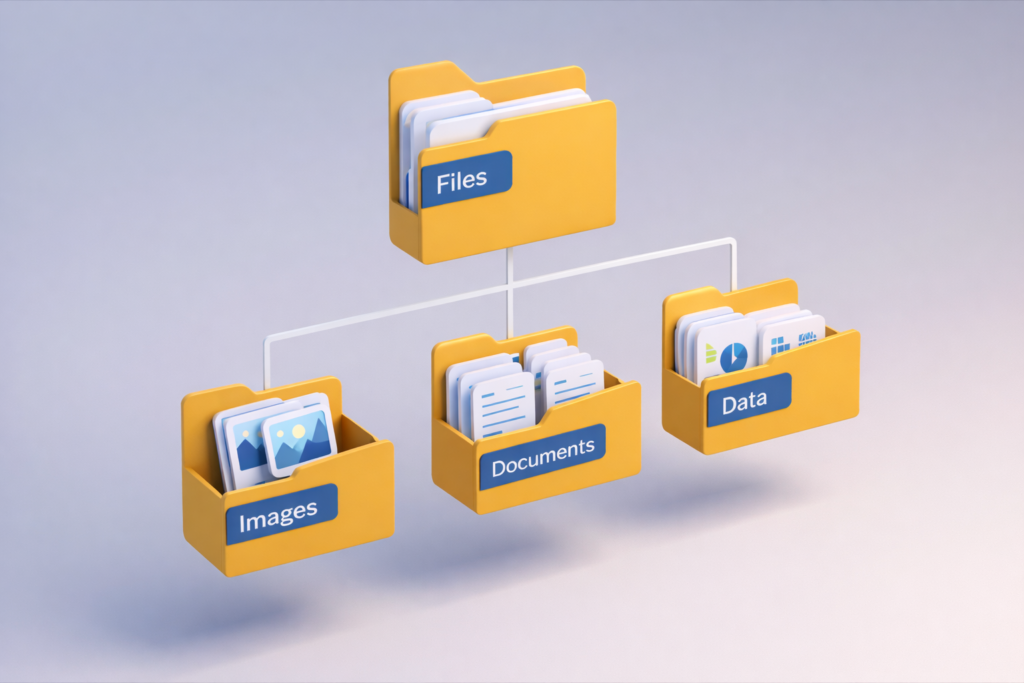
This structure means you can:
- Read your content without any special software
- Migrate to any platform using the Markdown file
- Rebuild on WordPress using the HTML with images intact
- Never lose your SEO work, even if switching platforms
The Alt Text Problem Nobody Talks About
Here’s something that surprised me during my research: most backup methods completely ignore alt text.
When you download images from your media library, you get files named image-1.jpg, image-2.png, and so on. But where’s the alt text you carefully wrote for accessibility and SEO?
It’s stuck in your database.
If your database backup fails or you’re migrating to a new platform, you’ll need to re-write alt text for every single image. For a blog with hundreds of posts and thousands of images, that’s potentially weeks of work lost.
Proper content extraction should map every image to its alt text in a readable format:
image-1.jpg: "Step-by-step guide to WordPress backup settings"
image-2.png: "Comparison chart showing backup file sizes"
featured-image.webp: "Blogger working on content protection strategy"
This small detail saves enormous time during any migration or restoration.
How to Implement Per-Asset Content Extraction
You have several options for implementing this backup strategy, ranging from completely manual to fully automated:
Option 1: Manual Extraction (Free, Time-Intensive)
You can manually copy content from each post:
- Copy text into a document
- Right-click and save each image
- Manually record alt text
- Export SEO data from your plugin
- Copy comments if needed
Reality check: For a blog with 100+ posts, this could take 40-80 hours. And you’d need to repeat it regularly.
Option 2: Custom Code Solution (Free, Technical)
Developers can write custom PHP scripts to extract content programmatically. This requires:
- Strong PHP knowledge
- Understanding of WordPress database structure
- Familiarity with the WordPress REST API
- Time to build and maintain the solution
Option 3: Purpose-Built Tools
There are WordPress plugins specifically designed for content extraction. I built Content Extractor Pro after my backup disaster specifically to solve this problem—it handles per-post extraction with all images, alt text mapping, multiple content formats, and SEO data preservation in one-click downloads.
Whatever method you choose, the key is having each post exist as an independent, verifiable, portable package.
How Often Should You Extract Your Content?
This is one of the most common questions about content backup strategy, and the answer depends on your publishing frequency:
For active bloggers (2+ posts per week):
- Extract each new post immediately after publishing
- Quarterly full extraction of entire archive
- Before any major site changes (hosting migration, theme updates)
For occasional publishers (1-4 posts per month):
- Monthly extraction of new content
- Semi-annual full archive extraction
- Before any WordPress core updates
For archived/legacy sites:
- One complete extraction
- Store in multiple locations
- Re-extract if any edits are made
The critical moments when extraction is non-negotiable:
- Before migrating hosting providers
- Before major WordPress updates
- Before changing themes
- Before site redesigns
- If you’re considering switching platforms
- Whenever you hit content milestones (100, 250, 500 posts)
Where to Store Your Extracted Content

Extracting content is only half the battle—you need proper storage strategy too.
The 3-2-1 Backup Rule applies:
- 3 copies of your data
- 2 different storage types
- 1 off-site location
Practical storage locations for extracted content:
| Storage Type | Pros | Cons |
|---|---|---|
| Local hard drive | Fast access, no internet needed | Single point of failure |
| External SSD | Portable, reliable | Can be lost/damaged |
| Cloud storage (Google Drive, Dropbox) | Off-site, accessible anywhere | Ongoing cost, privacy concerns |
| Cold storage (AWS Glacier) | Very affordable long-term | Slow retrieval times |
My recommendation: Store your most recent extractions locally for quick access, with automatic sync to cloud storage for redundancy.
What About Traditional Backups? Do I Still Need Them?
Absolutely. Per-asset extraction is a complement to traditional backups, not a replacement.
Traditional backups excel at:
- Quick full-site restoration
- Preserving plugin configurations
- Maintaining theme customizations
- Keeping user accounts intact
Per-asset extraction excels at:
- Content-level protection
- Platform independence
- Corruption resistance
- Verifiable backups you can actually read
Think of traditional backups as your first line of defense—they make restoration quick and painless when everything works. Per-asset extraction is your insurance policy for when traditional backups fail or when you need to move beyond WordPress entirely.
Frequently Asked Questions
How do I backup my WordPress blog content safely?
The safest approach combines traditional full-site backups with per-asset content extraction. Traditional backups create a restoration point for your entire site, while per-asset extraction ensures each piece of content exists independently as verifiable files. This dual approach protects against both server issues (traditional backup) and file corruption (individual extraction).
What happens if my WordPress backup file is corrupted?
Corrupted backup files typically cannot be repaired. Because traditional backups compress everything into a single archive, corruption in any section usually makes the entire file unusable. This is why extracting content into individual files provides crucial additional protection—even if some files are affected, others remain intact and usable.
Can I migrate WordPress content without losing images?
Yes, but it requires proper extraction that includes image files alongside your content. Standard export tools often include image URLs pointing to your old server, not the actual files. Complete extraction downloads all images and organizes them with your posts, preserving alt text mappings so nothing is lost during migration.
How can I preserve my SEO work when migrating platforms?
Metadata from SEO plugins like Yoast, RankMath, and All in One SEO is stored in your WordPress database. When you extract content properly, this data should be captured in a readable format including meta titles, descriptions, focus keywords, and canonical URLs. This allows you to recreate your SEO settings on any new platform.
Is per-post extraction better than database backups?
They serve different purposes. Database backups capture your entire site state for quick restoration within WordPress. Per-post extraction creates portable, platform-independent content files that resist corruption and can be used anywhere. For maximum protection, use both approaches together.
How long does content extraction take?
Manual extraction of a single post can take 10-15 minutes when you account for copying text, downloading images, recording alt text, and exporting SEO data. Automated tools like Content Extractor Pro reduce this to one click per post, generating a complete package in seconds.
Take Action Before You Need To

The worst time to think about content backup is after disaster strikes. I lost years of work before learning these lessons—you don’t have to.
Your next steps:
- Audit your current backup situation: Do you actually know your backups work? When did you last verify one?
- Extract your most valuable content first: Pick your top 10 posts by traffic or effort invested, and ensure those exist as independent files
- Build extraction into your publishing workflow: Every new post gets extracted within 48 hours of publishing
- Test your disaster recovery: Can you actually reconstruct a post from your backups? Try it with one post before you need to do it with hundreds
Your content represents countless hours of work, creative energy, and expertise. Traditional backups have their place, but adding per-asset extraction to your strategy ensures that no single point of failure can ever erase what you’ve built.
Don’t wait for the corrupted backup error message to take action.

Founder of Jobzhandle.com | Career Strategist & Personal Finance Enthusiast. I help professionals grow their skills, manage their money wisely, and explore new income opportunities. My goal is to turn career and financial goals into reality with simple, proven tips.