
|
Getting your Trinity Audio player ready...
|
It was a Tuesday morning when I realized everything was gone.
Three years of blog posts. Hundreds of articles I’d spent countless hours writing. Every image I’d carefully selected and optimized. All my SEO meta titles and descriptions I’d meticulously crafted. Gone. Vanished. Just like that.
I sat staring at my screen, watching the WordPress error message mock me: “This backup file is corrupted and cannot be restored.”
If you’ve ever felt that gut-punch moment of losing your work, you know the feeling. If you haven’t – I genuinely hope you never do. But statistically, if you’re a WordPress blogger without a proper backup strategy, it’s not a matter of if but when.
The good news? After rebuilding my blog from scratch (a nightmare I wouldn’t wish on anyone), I developed a foolproof system that ensures I’ll never lose my content again. And today, I’m sharing exactly how you can protect your blog before disaster strikes.

Why Traditional WordPress Backups Fail More Often Than You Think
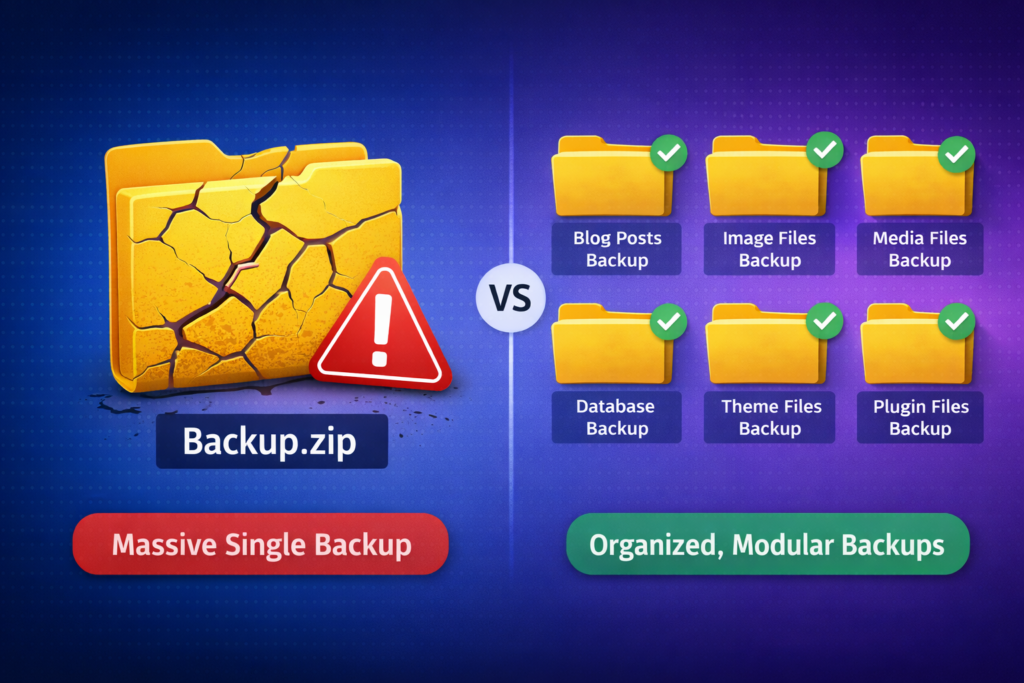
Here’s what nobody tells you about WordPress backups: they’re designed to fail.
Okay, that’s a bit dramatic. But consider how most backup plugins work:
- They compress your entire database into one file
- They bundle all media files into another massive archive
- They create one gigantic backup file that contains everything
Sounds comprehensive, right? That’s the problem.
When you put all your eggs in one basket – and that basket is a 2GB file being transferred over the internet – a lot can go wrong:
- Connection timeouts during backup creation
- Server memory limits exceeded during compression
- Disk space issues when storing large files
- Download interruptions corrupting the backup file
- Database locks causing incomplete exports
I’ve seen bloggers with backups that look fine sitting on their hosting account, only to discover the files are corrupted when they actually need them. That’s exactly what happened to me.
💡 The uncomfortable truth: Most bloggers never test their backups until disaster strikes. By then, it’s too late to discover the backup is useless.
The Real Problem: You’re Backing Up the Wrong Things
Let me ask you something: What do you actually need from a backup?
Most bloggers haven’t thought about this carefully. They assume “I need to restore my entire website.” But that’s rarely true.
What you really need is:
Your Actual Content
- Blog post text (the words you wrote)
- Images you uploaded
- The alt text on those images (crucial for SEO!)
- Your headline structure and formatting
Your SEO Work
- Meta titles and descriptions
- Focus keywords
- Canonical URLs
- Schema markup (if you use RankMath or Yoast)
Your Engagement Data
- Reader comments
- Comment author information
- Reply threads
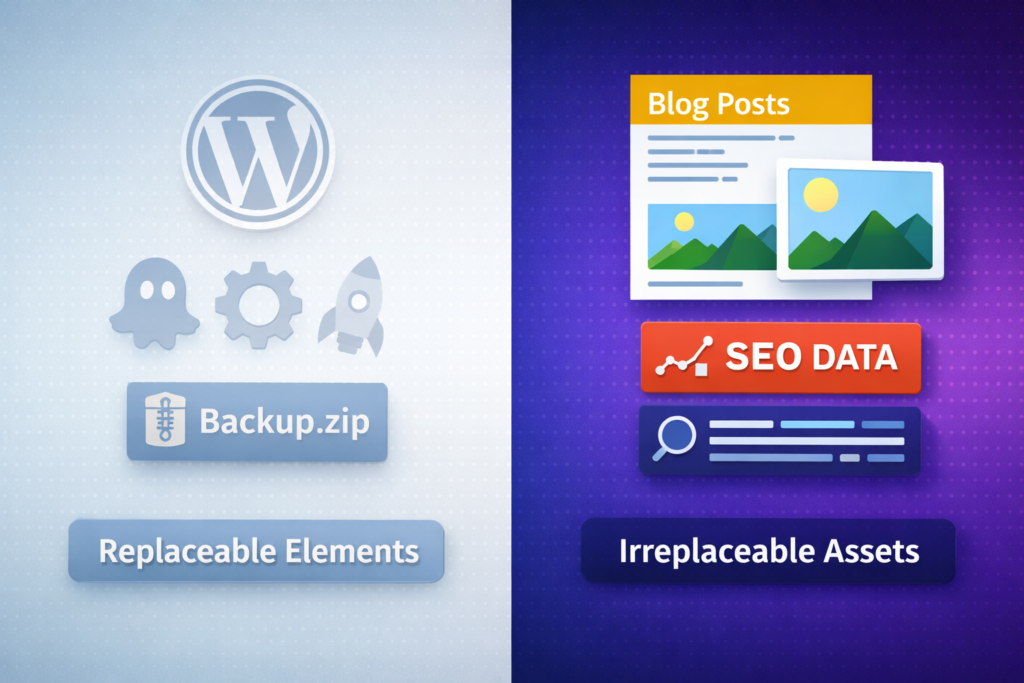
What You DON’T Need (And What Usually Causes Corruption)
- WordPress core files (re-installable in 5 minutes)
- Plugin files (re-downloadable)
- Theme files (unless heavily customized)
- Transient data and cache
- Session information
The irony? Traditional backup plugins focus on preserving everything – including all the stuff that’s easily replaceable. Meanwhile, they bundle your irreplaceable content into formats that are prone to corruption.
The Backup Strategy That Would Have Saved My Blog
After losing everything, I became obsessed with finding a better approach. The breakthrough came when I stopped thinking about “backups” and started thinking about “content extraction.”
Here’s the difference:
| Traditional Backup | Content Extraction |
|---|---|
| One massive file with everything | Individual files per post |
| All-or-nothing restore | Restore just what you need |
| Database-dependent format | Universal formats (HTML, Markdown, TXT) |
| Requires WordPress to read | Readable anywhere |
| Single point of failure | Distributed, safe copies |
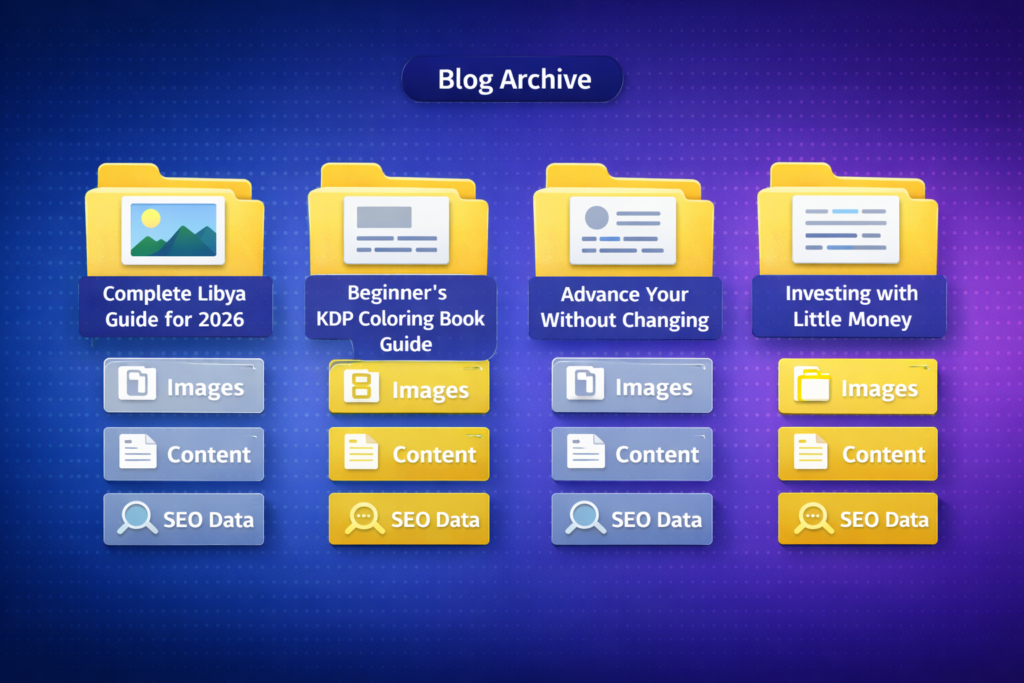
The concept is simple: Download each blog post as its own self-contained package.
Each package should include:
- ✅ The full blog content in multiple formats
- ✅ All images from that post
- ✅ Alt text for every image
- ✅ SEO metadata (titles, descriptions, keywords)
- ✅ Post information (date, author, categories, tags)
- ✅ Comments and replies
If one download fails? The rest are still safe. If one file corrupts? You’ve only lost one post, not everything.
This is the strategy I wish I’d known about before I lost three years of work.
How to Implement Per-Post Content Extraction
You have two options here: manual or automated.
The Manual Method (Free But Tedious)
For each blog post, you would need to:
- Copy the post content into a text file
- Save the HTML version separately
- Right-click and save each image individually
- Manually copy each image’s alt text
- Screenshot or copy your SEO plugin settings
- Export comments from your database
Time required: 15-30 minutes per post
For 100 posts: 25-50 hours of work
Yeah, that’s not realistic for most bloggers.
The Automated Method (Faster and Reliable)
After my data loss disaster, I built a tool that automates this entire process. It’s called [Content Extractor Pro], and it does in one click what would take you 30 minutes manually.
Here’s what happens when you click “Download” on any post:
The plugin creates a ZIP file containing:
your-post-title/
├── images/
│   ├── image-1.jpg
│   ├── image-2.png
│   └── image-3.webp
├── alt-text.txt
├── blog-content.html
├── blog-content.txt
├── blog-content.md
├── post-info.txt
├── seo-data.txt
└── comments.txt
Everything. In one click. Per post.
The key innovation is per-post downloads. Instead of creating one massive backup that can corrupt, each post downloads as its own small ZIP file. If something goes wrong with one download, you just try that post again – the others are unaffected.
What Gets Extracted (And Why Each Piece Matters)
Let me break down exactly what Content Extractor Pro preserves – because each element serves a specific purpose in protecting your work.
1. Full Blog Content in Three Formats
HTML Version (blog-content.html)
- Beautifully styled, ready to republish
- Preserves all formatting: headings, lists, blockquotes
- Opens in any browser
- Perfect for migrating to a new WordPress site
Plain Text Version (blog-content.txt)
- Easy to copy and paste anywhere
- No formatting to fight with
- Great for repurposing content
Markdown Version (blog-content.md)
- Includes frontmatter (title, date, categories, tags)
- Works with any static site generator
- Perfect for moving to Ghost, Hugo, or Jekyll
- Future-proof format
2. All Images with Original Quality
Every image from your post downloads to an organized images/ folder:
- Featured image
- Content images
- Gallery images
- Gutenberg block images
No compression. No quality loss. Original files.
3. Alt Text Preservation
This is the one most backup solutions miss completely.
Your alt-text.txt file maps each image to its alt text:
image-1.jpg: Blogger working on laptop with coffee
image-2.png: WordPress dashboard showing posts
image-3.png: Comparison infographic of backup methods
If you’ve spent time writing descriptive, SEO-friendly alt text, you know how valuable this is.
4. SEO Data Extraction
Content Extractor Pro pulls data from three major SEO plugins:
From Yoast SEO:
- Meta title and description
- Focus keyword
- Canonical URL
From RankMath:
- Meta title and description
- Focus keywords (including variations)
- Canonical URL
- Robots meta settings
- Schema markup (JSON-LD format)
From All in One SEO:
- Meta title and description
- Keywords
All saved in a clear, readable seo-data.txt file.
5. Comments Export
Your readers’ engagement matters. Each extraction includes:
- All approved comments
- Author names and timestamps
- Email addresses (for your records)
- Reply threading preserved

Real-World Scenario: How This Saved My Blog (The Second Time)
Six months after rebuilding my blog, I faced another crisis. My hosting company had a server failure. (Yes, really. I have terrible luck.)
But this time? I was prepared.
I had been downloading my posts weekly using Content Extractor Pro. When the hosting company told me they had “limited backup availability,” I didn’t panic.
I spun up a new WordPress site on a different host. Then I:
- Uploaded my extracted images to the new media library
- Copied my Markdown content into new posts
- Used my SEO data files to restore all my meta information
- Even had my comments ready to import
Total recovery time: 4 hours.
Compare that to “Sorry, your backup file is corrupted” with zero recovery options. Night and day difference.
🎯 Pro Tip: I now download newly published posts immediately after hitting “Publish.” It takes 5 seconds and means my content exists in multiple places from minute one.

Step-by-Step: Setting Up Your Content Protection System
Here’s exactly how I recommend protecting your blog content:
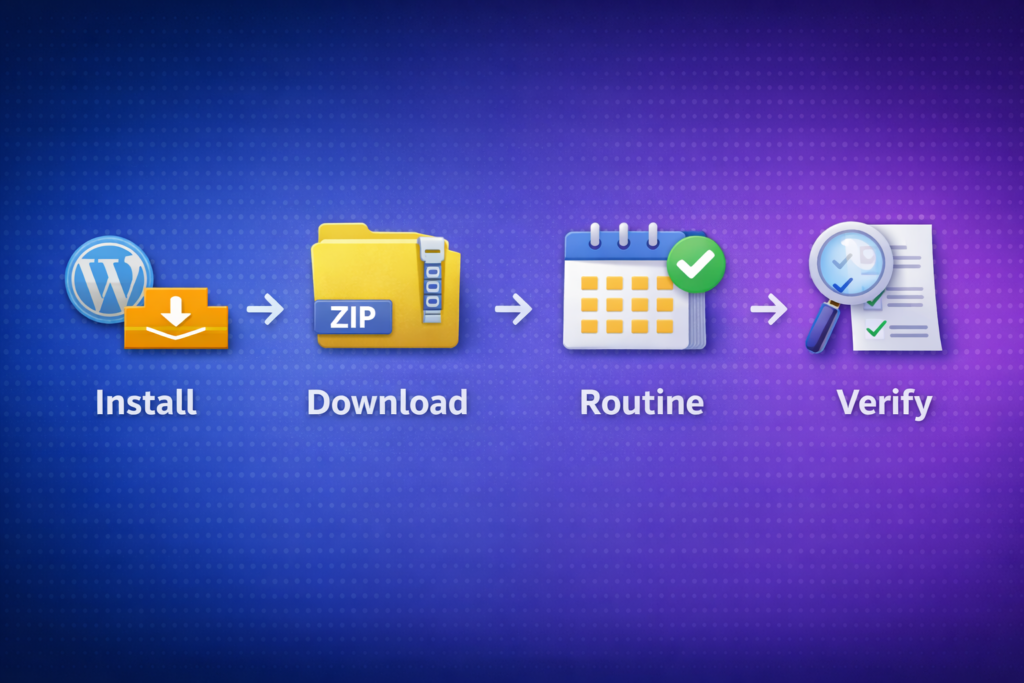
Step 1: Install Content Extractor Pro
- Download the plugin ZIP from CONTENT EXTRACTER
- Go to WordPress Admin → Plugins → Add New
- Click “Upload Plugin”
- Select the ZIP file and click “Install Now”
- Activate the plugin
Step 2: Download Your Existing Posts
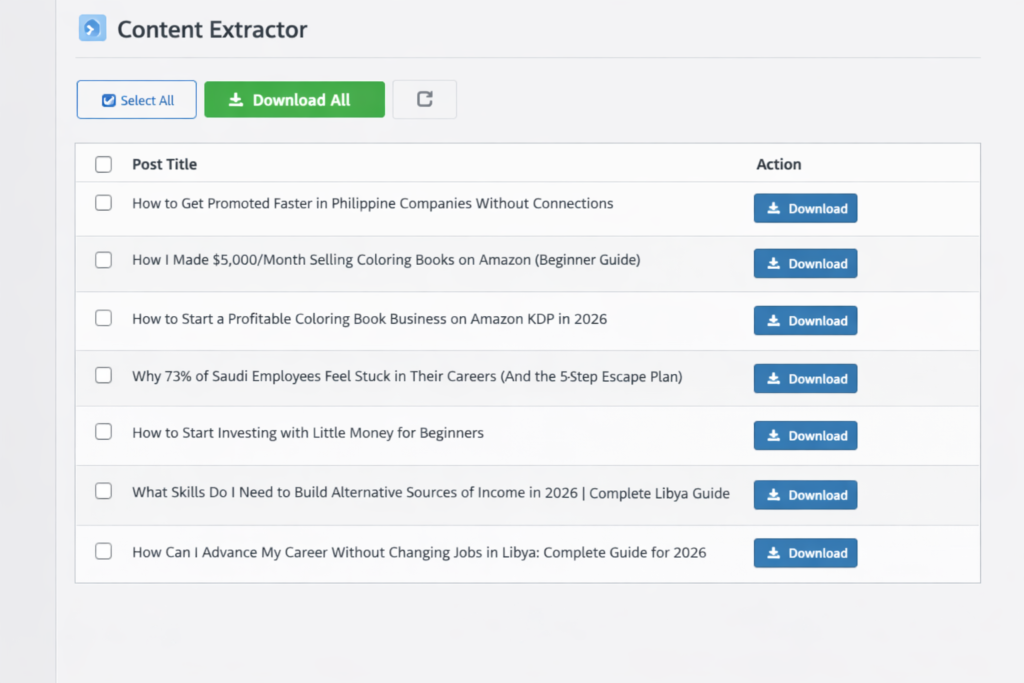
- Navigate to “Content Extractor” in your admin sidebar
- You’ll see all your published posts listed
- Click “Select All” to select every post
- Click “Download Selected”
- The plugin downloads each post sequentially (2-second delay between each)
- Save all ZIP files to a dedicated folder on your computer
Step 3: Establish a Backup Routine
For new posts:
- Download immediately after publishing
- Takes 5 seconds per post
Weekly maintenance:
- Download any posts you’ve edited
- Keep your local archive current
Monthly practice:
- Copy your backup folder to cloud storage (Google Drive, Dropbox)
- Consider an external hard drive for extra safety
Step 4: Verify Your Backups
This is the step most people skip – and it’s the most important.
Once a month:
- Pick a random ZIP file
- Extract it
- Open the HTML file in a browser
- Verify images load correctly
- Check that SEO data is present
If everything looks good, you’re protected.
Beyond WordPress: How Content Extraction Enables Platform Freedom
One unexpected benefit of per-post content extraction: platform independence.
When your content exists in HTML, Markdown, and plain text formats – with all images and SEO data organized – you’re no longer locked into WordPress.
Consider these scenarios:
Moving to Ghost: The Markdown files with frontmatter import directly.
Switching to a static site generator: Hugo, Jekyll, and Eleventy all work with Markdown.
Starting a newsletter: Plain text versions paste perfectly into email platforms.
Creating an ebook: Your extracted content is already organized by post.
Archiving permanently: Store in cloud storage indefinitely without needing WordPress.
Traditional WordPress backups keep you dependent on WordPress. Content extraction sets you free.
Frequently Asked Questions
How is this different from WordPress’s built-in export?
WordPress’s native export creates an XML file with your content, but it doesn’t include images (only references to them). If those images disappear from your server, they’re gone. Content Extractor Pro downloads actual image files along with your content.
Does this replace regular WordPress backups?
Not entirely. Traditional backups are still useful for quick site restoration after minor issues. Think of content extraction as an additional layer of protection focused specifically on your irreplaceable content. It’s your insurance policy when the backup fails.
How long does it take to download all my posts?
For a 100-post blog, expect about 15-20 minutes for batch downloads (with the built-in 2-second delays between posts). You can also download individual posts in about 3-5 seconds each.
What if I use a different SEO plugin?
Content Extractor Pro currently supports Yoast SEO, RankMath, and All in One SEO. If you use a different plugin, the core content and images will still extract – you’d just need to manually note your SEO settings.
Can I automate the download process?
Currently, downloads require manual initiation (intentionally, to avoid server strain). However, the batch download feature lets you select all posts and download them sequentially with one click.
The Bottom Line: Content Insurance You Can’t Afford to Skip
I learned my lesson the hard way. Three years of work, hundreds of hours of writing, all lost because I trusted a single backup file that turned out to be corrupted.
You don’t have to learn that lesson through experience.
For the cost of a single coffee, Content Extractor Pro gives you:
- ✅ Per-post downloads that eliminate single-point-of-failure risk
- ✅ Multiple content formats (HTML, Markdown, plain text)
- ✅ Complete image backup with alt text preservation
- ✅ SEO data extraction from major plugins
- ✅ Comment exports to preserve reader engagement
- ✅ Platform-independent files you can use anywhere
I’m releasing a video walkthrough soon showing exactly how the plugin works and demonstrating a real content recovery scenario. Check the product page for screenshots and updates.
Your blog represents your expertise, your voice, your hours of work. Protect it before it’s too late.
I rebuilt my blog once. I never want to do it again. And with proper content extraction in place, I won’t have to.
Don’t wait for disaster to strike. Download your content today.
Have questions about protecting your blog content? Drop a comment below – I read and respond to every one.

Founder of Jobzhandle.com | Career Strategist & Personal Finance Enthusiast. I help professionals grow their skills, manage their money wisely, and explore new income opportunities. My goal is to turn career and financial goals into reality with simple, proven tips.